
Quick Answer
The LA Fitness Mobile app, made by Fitness International, LLC, is a free companion app for members. It lets you check in with a mobile membership card, find clubs and classes, save favourite clubs, classes and instructors, book personal training sessions, reserve racquetball and squash courts, and review your check-in history. It also supports Apple Watch for the mobile membership card, favourites and check-in history.
That is what this guide covers: day-to-day app use. It does not cover cancelling a membership in the app, or freezing a membership in the app. Those are separate processes, covered in their own guides, linked below, and this guide deliberately gives no steps for them. If you came here looking for a cancel button, read the cancellation guide instead — do not assume the app route and the cancellation route are the same thing.
Getting the app and signing in
Download LA Fitness Mobile free from the Google Play Store or the Apple App Store. Check that the developer is Fitness International, LLC, since similarly named apps exist and a wrong app will not open your membership. The app is listed as complimentary, which matches its role as a member tool rather than a paid product.
Signing in requires your membership account. The exact sign-in details vary by account and by how you joined, and members report different prompts — for example, being asked for details from the account used for recurring dues — so if sign-in fails, do not keep guessing and risk locking the account. Instead, check the details from your membership confirmation or key tag, try once with those details, and if it still fails, contact the club or the app support contact listed in the store listing. A sign-in problem at the desk is much easier to fix than a locked account after repeated failed attempts.
Once you are signed in, do two things before you rely on the app at the door: open your mobile membership card and confirm it displays, and save your home club as a favourite. Those two steps cover most of what you will use the app for on a normal visit, and finding a problem with either one at home is far better than finding it in a queue at check-in.
The mobile membership card: check-in without a physical card
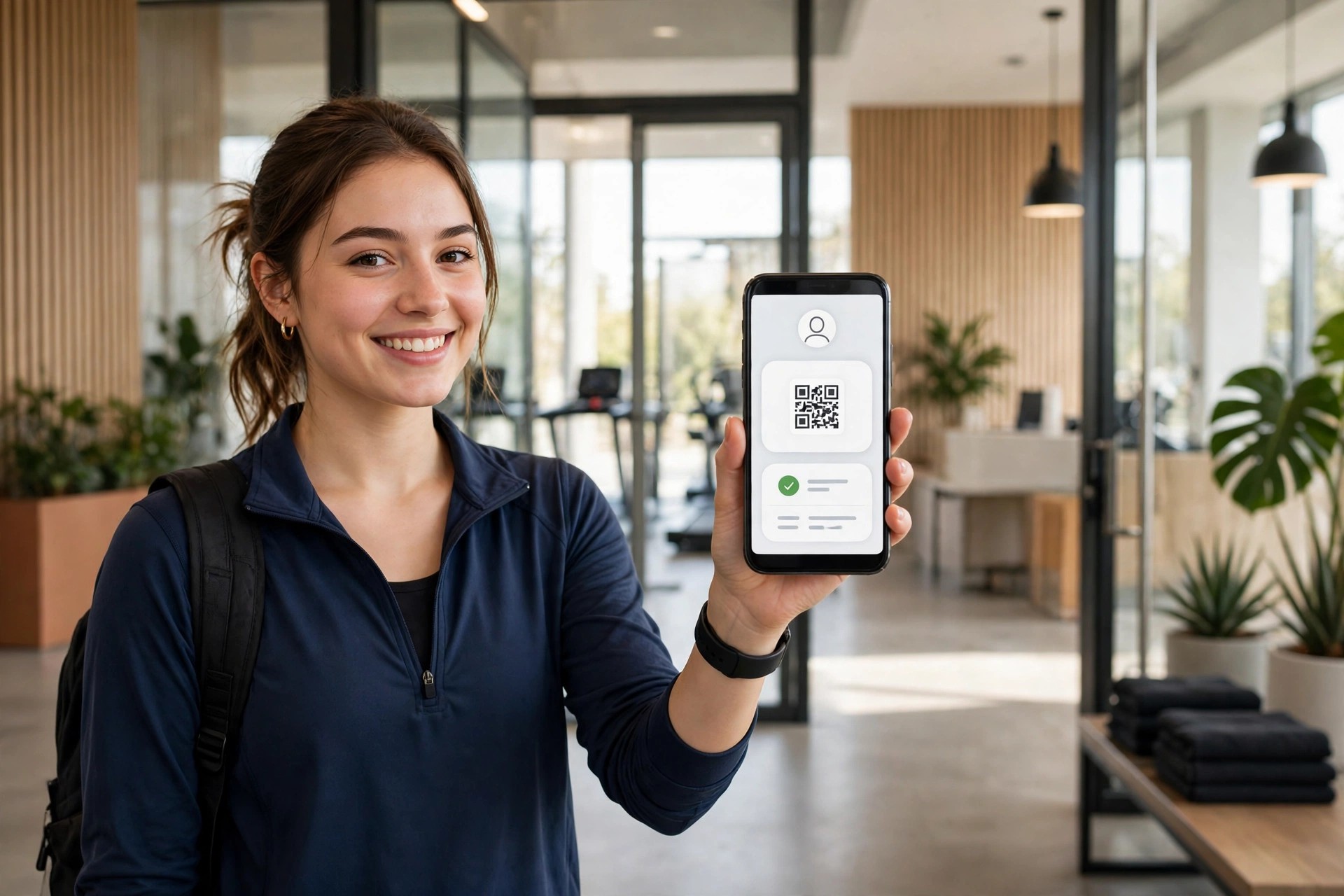
The mobile membership card is the app’s check-in tool. Open the app, open the card, and present it at check-in as your club directs. On Apple Watch, the card, favourites and check-in history are also available directly from the watch.
If the card does not display, or staff cannot scan it, do not assume your membership has ended. App display problems, expired sessions and sign-in issues are common causes, and they are different from a membership problem. Try signing out and back in once, check that you are signed into the correct account, and if the card still does not display, ask front-desk staff to check you in by another method for that visit and to help you fix the app afterwards. Keep a physical card or another form of membership proof as a backup on early visits, until you are confident the mobile card works reliably at your club.
Finding a club and a class
The app’s club and class finder is how most members plan a visit. You can find clubs, browse class schedules, and save favourite clubs, classes and instructors for quick access later.
Because every LA Fitness club runs its own schedule, there is no single national class timetable to memorise. Use the app to select your club first, then browse that club’s classes by type, time or instructor. Saving favourites is worth doing early: a favourite club, a favourite class type, and a favourite instructor, where you have one, turn a multi-step search into a one-tap check on future visits.
Class timetables themselves are not repeated in this guide. The full class schedule guide and the individual class guides cover what each class involves, which classes are included, and which classes need booking. This guide covers only how to use the app to find and book them.
Booking a class in the app
Booking a class through the app, where your club requires booking, follows the same pattern each time: select your club, find the class, and reserve your place.

If a class is full, check whether your club offers a waitlist, a standby line, or simply first-come entry at the door — those rules vary by club and by class, and the app listing does not publish a single national booking or cancellation window for classes.
A few practical habits help:
- Book early for popular classes, especially in the evening and at weekends, when classes fill first.
- Arrive early for a booked class, and tell the instructor it is your first time if it is. Late entry can disrupt a class and can be unsafe if you missed the warm-up, and some instructors close the door once a class starts.
- If you cannot attend a class you booked, cancel the booking in the app where that option is available, so someone else can take the place. Class-booking cancellation is not the same as membership cancellation — it only frees a class place.
- If the app will not let you book a class that looks available, check that you selected the correct club, the correct date, and the correct class type. Members report that searching by activity type, rather than by club name alone, sometimes finds a club or class that a direct search misses. If booking still fails, ask front-desk staff whether that class needs in-person booking, has a different booking window, or is already full despite what the app shows.
Reserving a racquetball or squash court in the app
Court reservations are one of the app’s named features: “Reserve Racquetball/Squash courts”. Where your club has racquet courts, the app is the natural first place to check availability and reserve a court, rather than turning up and hoping.

Court booking rules themselves — how far in advance you can book, how long a booking lasts, whether you can book back-to-back sessions, and what happens if you do not turn up — vary by club and are covered in the courts guide, linked below. This guide covers only the app step: open the app, find court reservations for your club, and reserve the court you want. If your club’s courts do not appear in the app, ask the front desk whether booking is done in person, by phone, or on a first-come basis at that club, rather than assuming the app is broken.
Booking personal training in the app
You can also book personal training sessions in the app. That means the app can be used to arrange a training session with a trainer at your club, where that feature is enabled for your club.
Personal training itself — what it costs, what agreement it involves, and how it differs from group classes — is covered in the personal training guide, linked below, and is not repeated here. The app step is only the booking step. Do not confuse booking a training session with buying a training package: a booking made in the app still sits under whatever training agreement your club quoted you, and you should have that agreement in writing before you commit to a package.
Favourites and check-in history
Favourites and check-in history are the app’s two quiet time-savers. Favourites give you quick access to the clubs, classes and instructors you use most, without searching each time. Check-in history lets you review your recent visits, which is useful if you are tracking how often you train, or if you need to confirm a visit date for any reason.
Neither feature changes your membership, your billing, or your access. They are records and shortcuts, not account controls. If your check-in history looks wrong — a missing visit, or a visit at a club you did not attend — raise it with front-desk staff, since it may reflect a check-in error rather than a membership error.
What the app does not do, or does not do reliably
Being honest about limits saves frustration. Members report, in app store reviews, that class and club search can be glitchy, that a regular club sometimes does not appear in a map or ZIP-code search, and that booking a class can fail even when places look available. If the app fails, use the club’s website, call the club, or ask at the front desk, rather than assuming the class, court or club does not exist.
Members also report wanting to pay membership dues through the app. Do not assume you can pay dues, update billing, or change your membership type in the app — the official listing does not name dues payment as a feature. For billing questions, read the billing guide, and for membership changes, contact the club through the route it directs you to for that change. This guide does not give steps for membership changes, cancellations or freezes in the app, because those processes belong in their own guides and vary by agreement.
Troubleshooting: the fixes to try first
- App will not sign in: check your membership details from your confirmation, try once, then contact the club or app support rather than repeatedly guessing. Repeated failed attempts can lock an account.
- Membership card will not display: sign out and back in once, confirm you are in the correct account, and ask front-desk staff to check you in by another method for that visit.
- Club does not appear in search: try searching by activity or class type, try the club’s name without abbreviations, and check the club’s own page on the LA Fitness website. If the club still does not appear, ask the club whether it is listed under a different name or in a different area in the app.
- Class booking fails: check the club, date and class type, check whether the class is actually full, and ask front-desk staff whether that class has a different booking window or an in-person booking rule.
- Court reservation does not appear: check whether your club has racquet courts at all, and whether booking at that club is done in person or by phone instead of through the app.
- App crashes or freezes: update the app, restart your phone, and if the problem persists, use the club website or front desk for that visit and report the problem through the app store or the support contact in the listing.
If a problem affects your access on the day — you cannot check in, or you cannot book a class you need — go to the front desk. The app is a convenience, not the only way into the club, and staff can check you in and help you book by another method.
Frequently asked questions
Yes. LA Fitness Mobile is listed as free, made by Fitness International, LLC. It is a companion app for members, not a paid product.
Sign in with your membership account details. The exact prompts vary by account, so use the details from your membership confirmation or key tag, try once, and contact the club or app support if sign-in fails rather than repeatedly guessing.
Yes, through the mobile membership card option in the app, and on Apple Watch for the card, favourites and check-in history. Keep a physical card as a backup until the mobile card works reliably at your club.
The official listing names finding clubs and classes. Where your club offers booking in the app, select your club, find the class, and reserve your place — and check with the front desk if booking does not appear.
Yes, where your club offers racquet courts — you can reserve a court in the app. Court booking rules, such as how far ahead you can book, vary by club and are covered in the courts guide.
This guide gives no steps for cancelling a membership in the app, because cancellation is a separate process covered in the cancellation guide. Read that guide for the cancellation process for your agreement, rather than assuming an app button does the same thing.
This guide gives no steps for freezing a membership in the app, because freezing is a separate process covered in the freeze guide. Read that guide for the freeze process for your agreement.
Do not assume dues payment, billing updates, or membership-type changes can be done in the app. For billing, read the billing guide and contact the club through the route it directs you to.